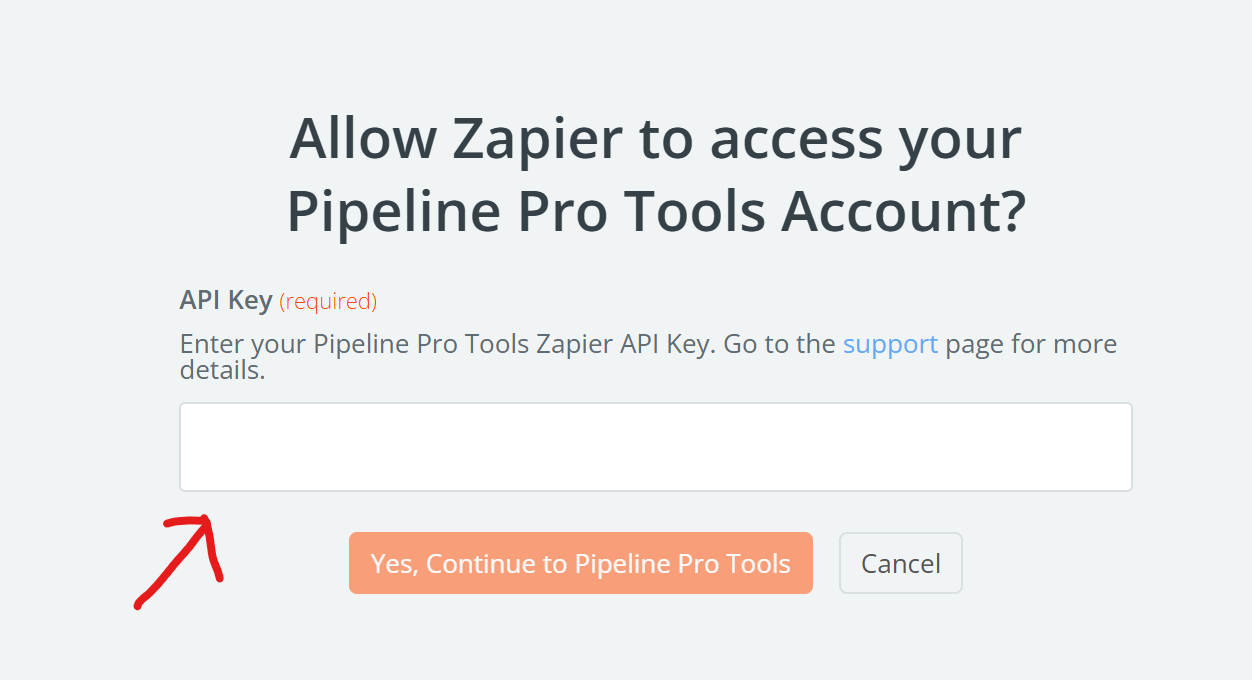
Zapier Integration
This quick guide will show you how to integrate your PPT account with zapier.
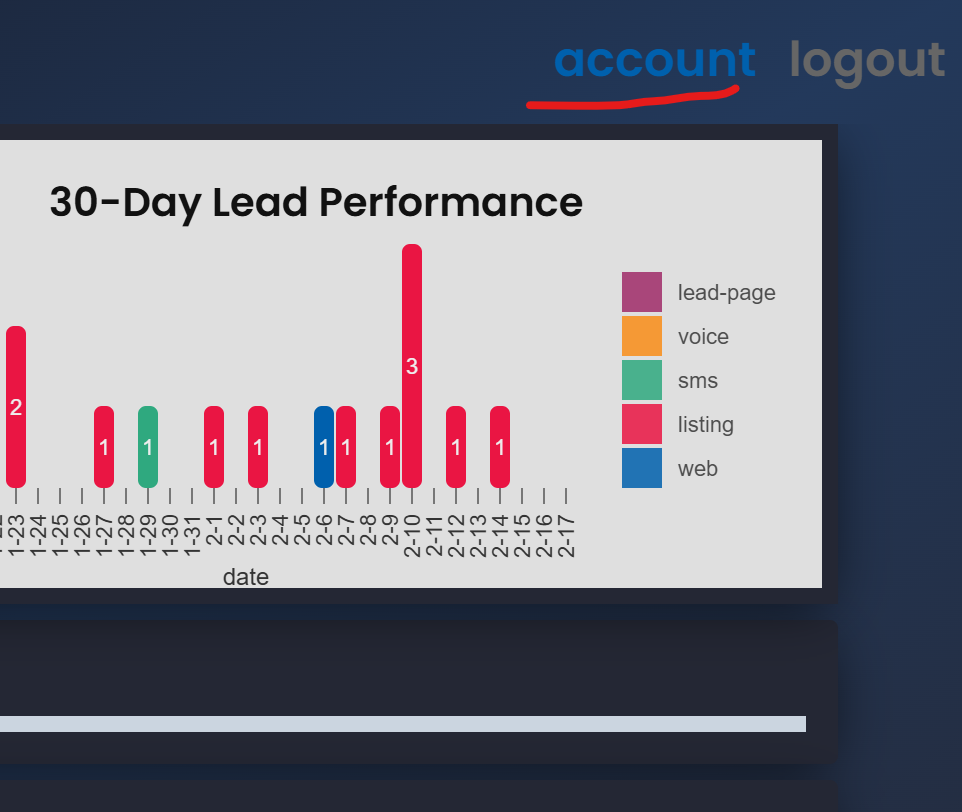
Navigate to account
First login to the PPT app and click the 'account' link found in the dashboard.
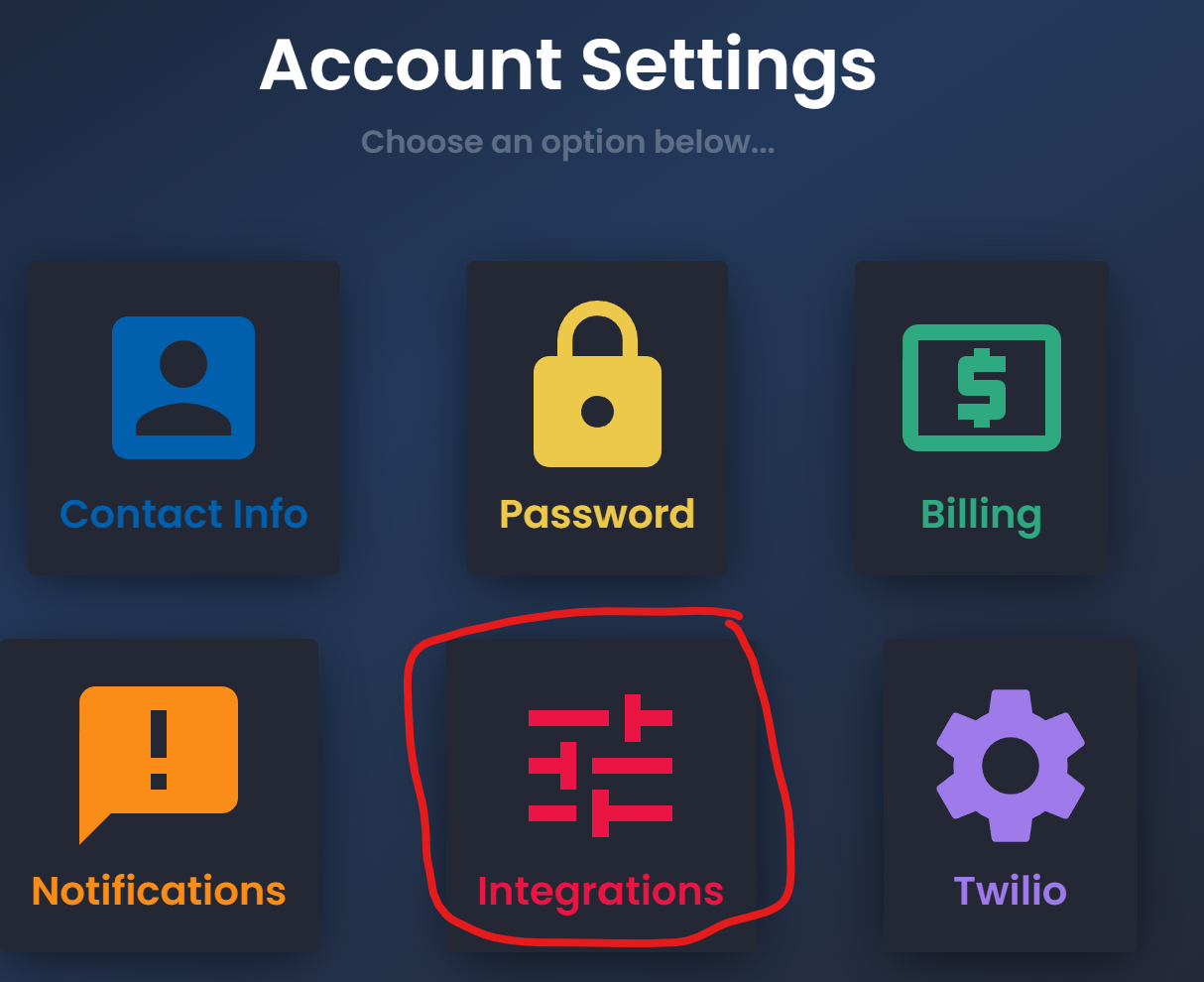
Click on the Integrations Button
After navigating to the 'account' page click on the Integrations button. This will take you to the integrations page.
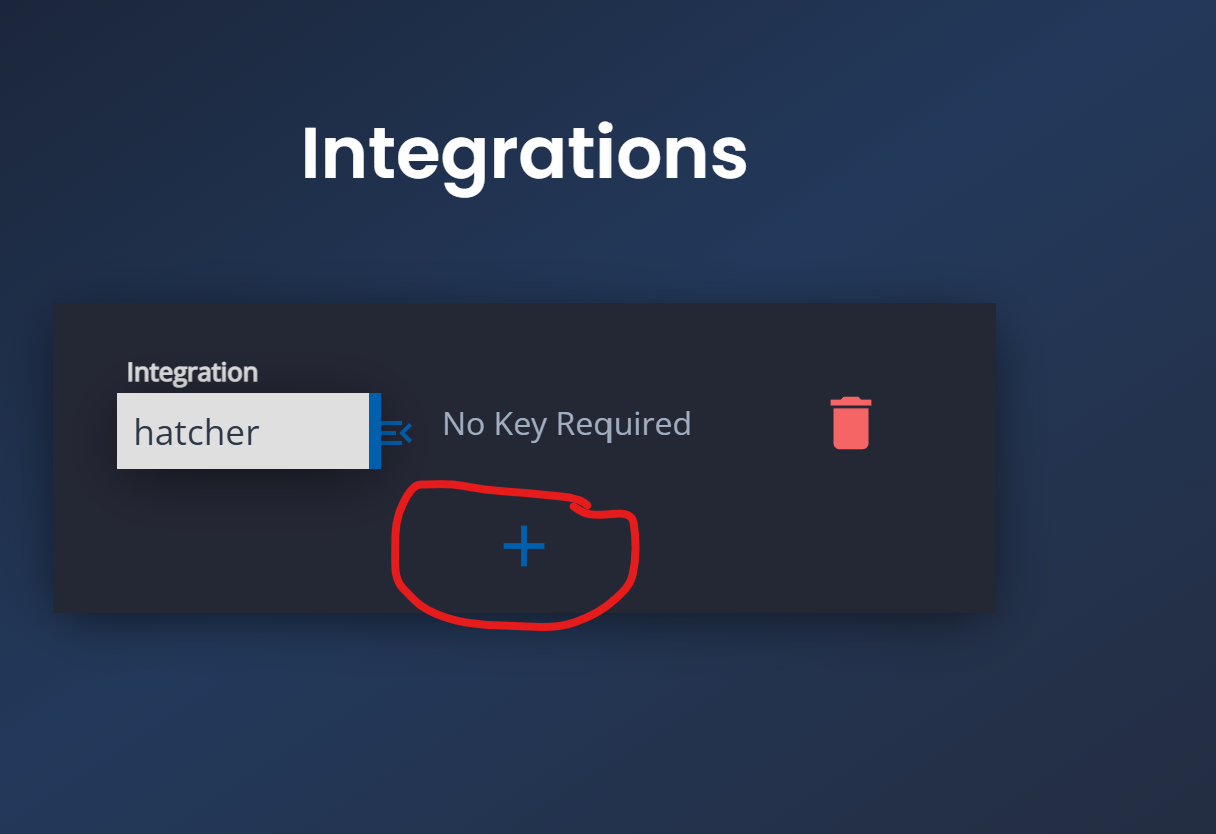
Create a New Integration
Once the integration page loads click the 'add integration' button.
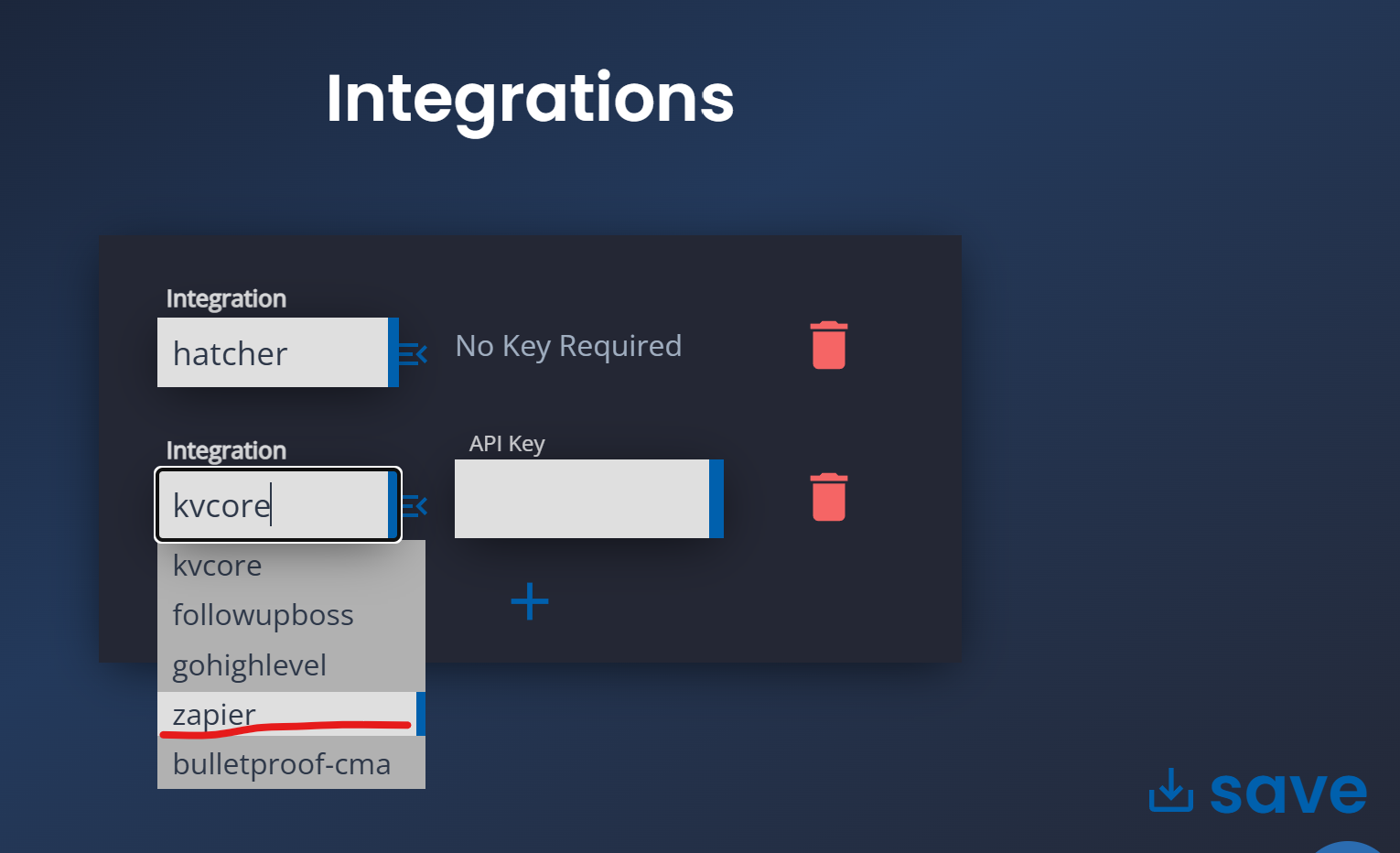
Select 'Zapier' Integration
Once the new integration is create change the integration type to 'zapier'. Drop down display can be prompted by clicking the blue button to the right.
Copy API Key
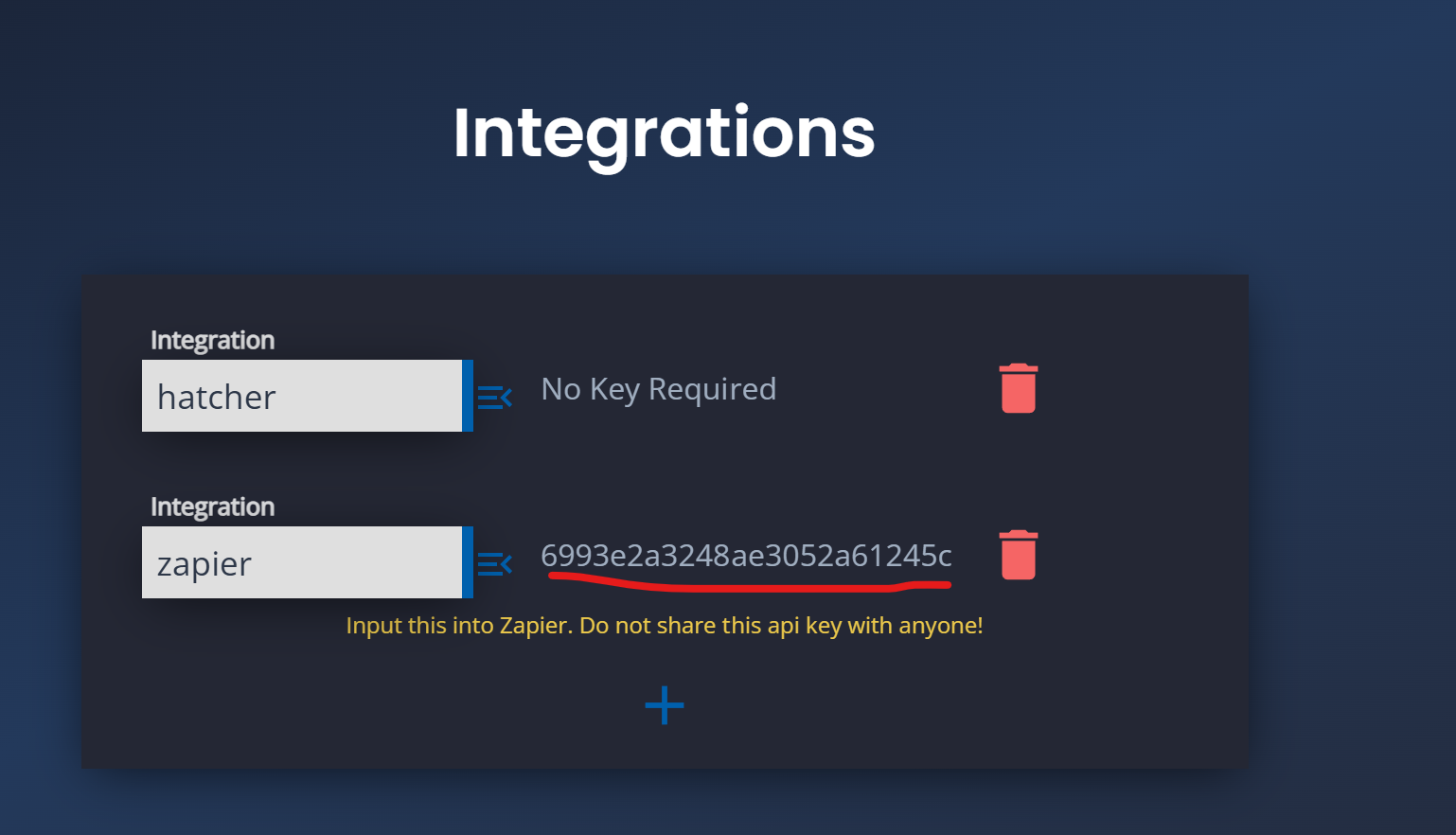
After choosing the Zapier type copy the 'API Key'.
Do not share the API Key with anyone else
Save Integration Settings
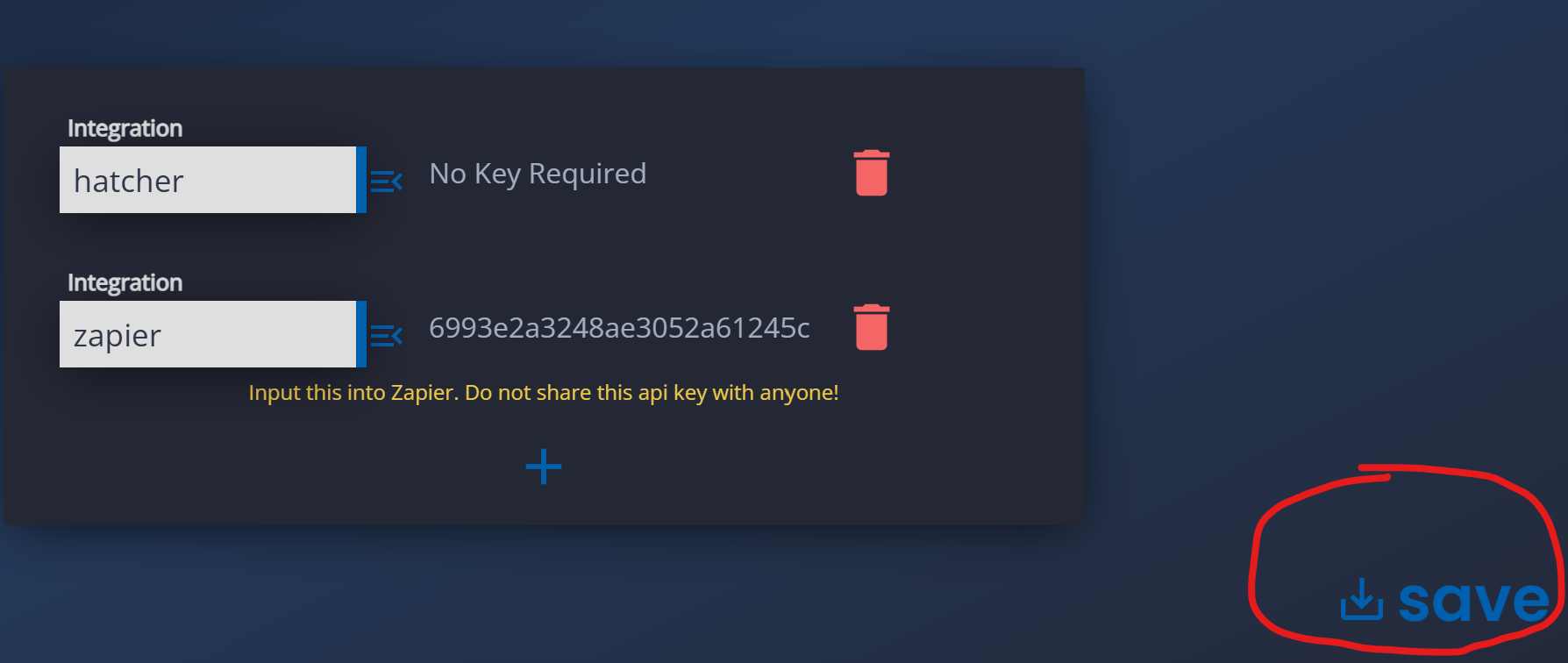
After copying the API Key save your integration settings.
Do NOT forget this step. Saving will enable the zapier integration in PPT.
Input the API into Zapier
Paste the API Key copied earlier into the Zapier 'API Key' input. Now you're done, Congrats! You're awesome!